|
SnowCrest Inc., P.O. Box 1379, Mt Shasta, CA 96067 (530) 926-6888 or (530) 245-4698
|

|
|
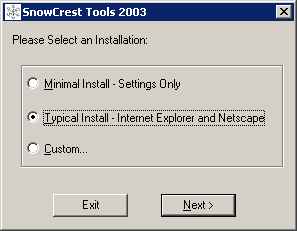
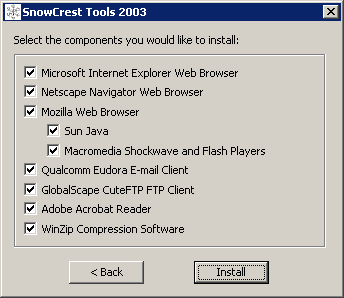
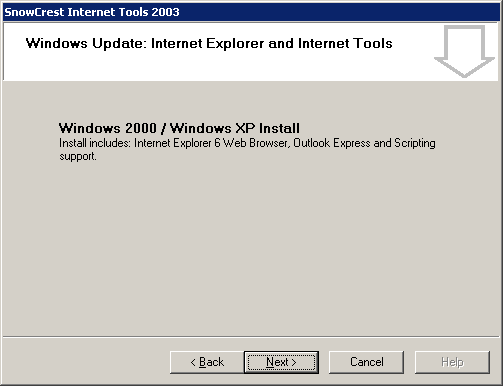
SnowCrest CD v.5 Windows InstallThe CD should automatically start. If not, double-click "My Computer", double-click the CD drive, then double-click "Setup.exe".
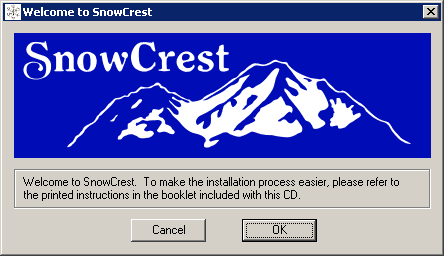
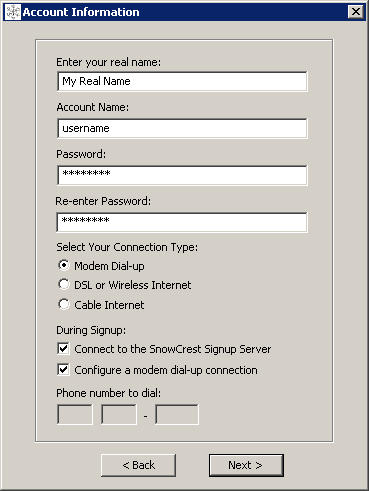
Click "OK" on the welcome screen. Account Information
Enter in the following information:
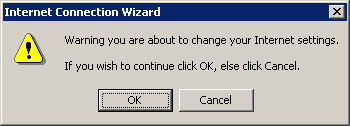
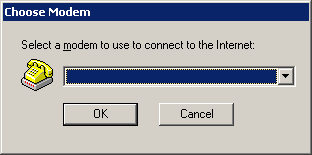
If you uncheck "Connect to the SnowCrest Signup Server", you must enter in the SnowCrest local access number in the "Phone number to dial" box. Click "Next". Username and Password Confirmation
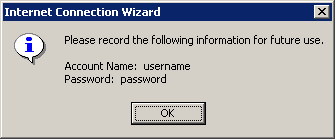
Write down your confirmed username and password. Then click "OK". Configuration Error
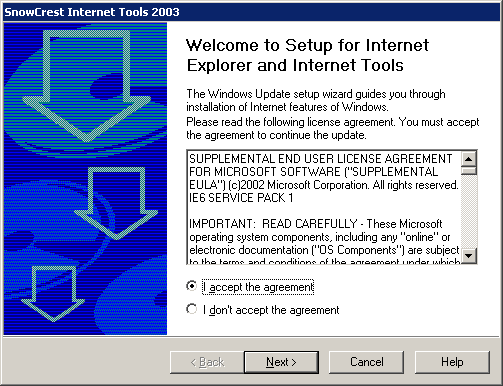
If you get an error, click "OK" and contact SnowCrest's support staff at (530) 926-6888 or (530) 245-4698 or by e-mail at support@snowcrest.net for assistance. Otherwise, continue to the next screen. Verifying Software
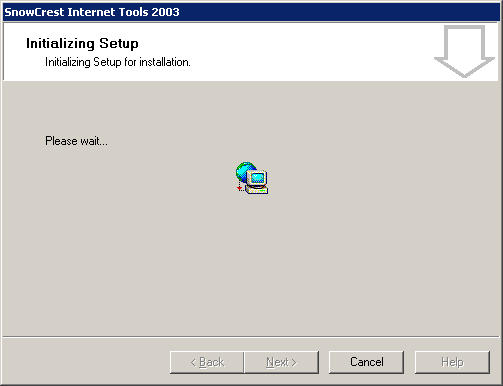
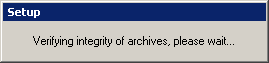
Wait while setup verifies the software. When this is finished, continue to the next screen. Installation Progress
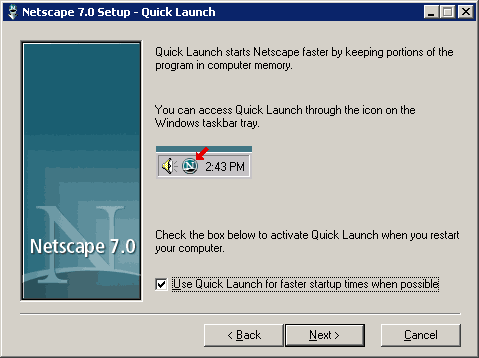
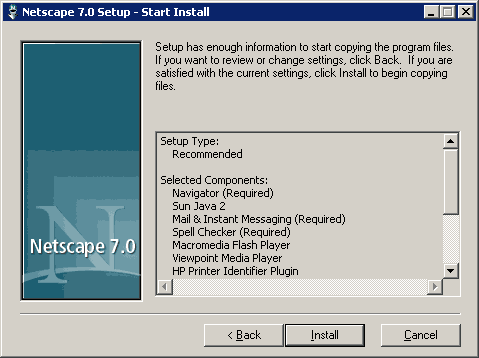
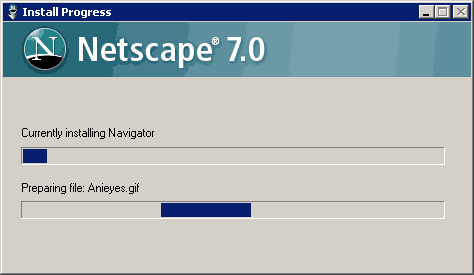
Wait while Netscape installs. When finished, the SnowCrest Internet Tools 2003 is installed! The SnowCrest Tools CD is now installed. If you are still experiencing difficulties, please give our technicians a call at (530) 926-6888 or (530) 245-4698, or you can e-mail us at support@snowcrest.net. |


SnowCrest.net is © 1995-2026 SnowCrest Inc., all rights reserved. Please do not duplicate or copy any graphics, layout or code on this website. Do you have a question or comment for us? Contact us. View our terms and conditions, privacy policy, copyright policy, return/refund policy, and customer contracts. Usage of SnowCrest services constitues agreement to SnowCrest's terms and conditions. Read the Important Information Regarding California Relay Service and the Additional Information Regarding California Relay Service. This site has been validated for XHTML 1.0 Transitional and CSS 2.0.